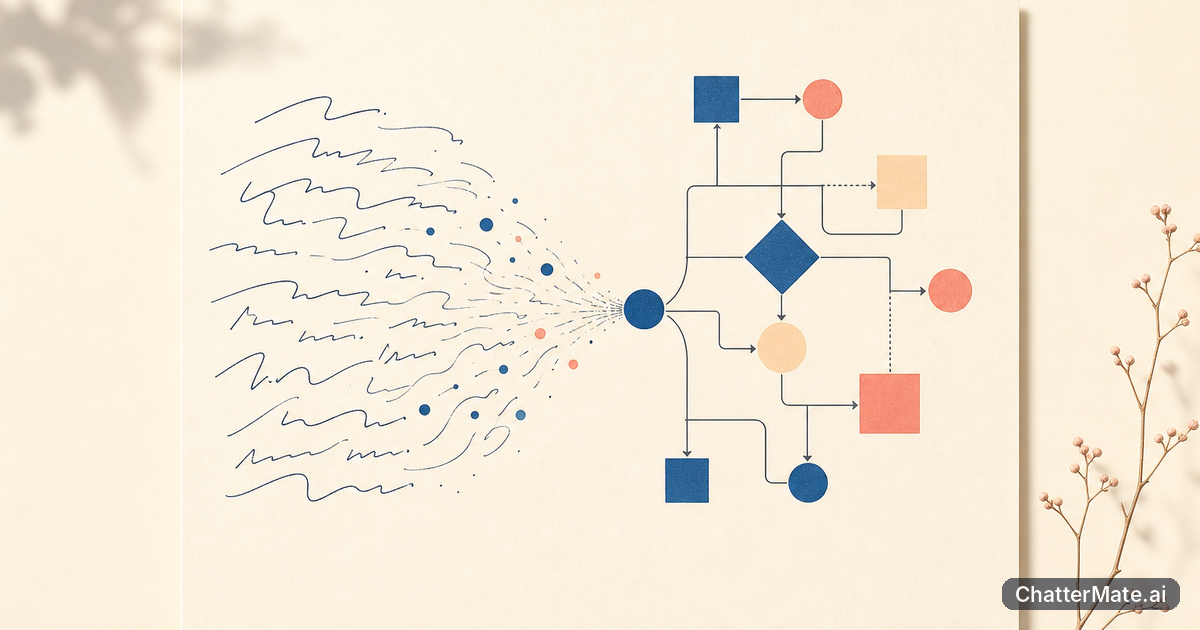
You’re deep into an article or research note when you realize the idea would be clearer as a flowchart. Switching apps, learning diagram syntax, and arranging boxes by hand can break your momentum. A text to diagram AI workflow lets you stay with your prose: select a line, generate a visual, then refine its layout and style.
Why syntax and manual diagramming slow you down
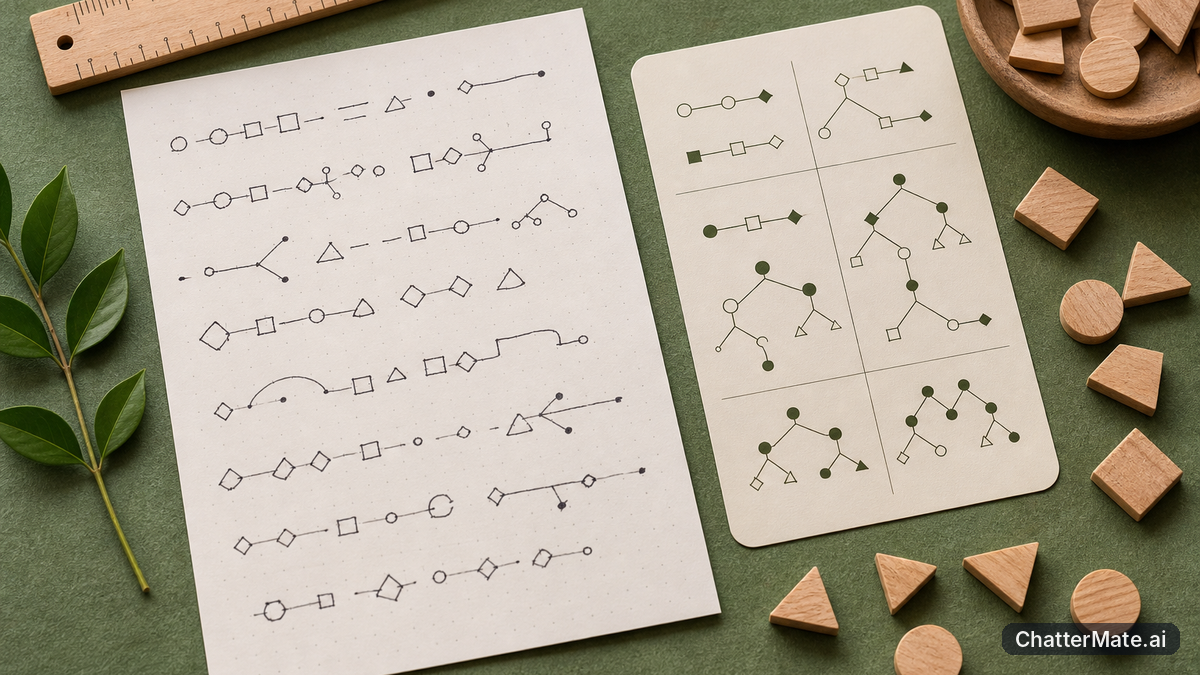
Diagramming tools can be useful when you need precise control, but they often ask for extra work before you can see whether your idea makes sense. With a syntax-based tool, you may need to learn how to define nodes and connections. With a drag-and-drop editor, you have to create shapes, label them, connect them, and adjust spacing. That’s a lot of setup for a quick visual to support a draft.
Imagine you’ve written, “A reader finds a problem, compares options, chooses a method, and reviews the result.” You already have the sequence in your notes, but rebuilding it manually means translating the sentence into a different tool’s rules. That interruption can be especially frustrating while outlining an explainer or organizing class notes. An AI flowchart generator can instead use your existing wording as the starting point, so you spend less time arranging boxes and more time checking whether the idea is clear.
Turn ordinary prose into a diagram

An AI visual writer starts with the text you’ve already written rather than requiring you to compose a special diagram prompt. In ChatterMate, hover over a line in your writing and use the lightning-bolt action to create a visual. The AI reads the natural prose, identifies the key nodes and the relationships between them, and builds a diagram in about three seconds. You can move from a sentence to a first visual without learning Mermaid or rewriting your notes as a list of instructions.
For example, a student’s paragraph about the water cycle can become a flowchart connecting evaporation, condensation, precipitation, and collection. A writer outlining a character’s decision can visualize the choice and its consequences. The first result gives you a structure to inspect: are the steps in the right order, and are the important connections represented? For a broader look at turning a central idea into multiple pieces of content, see this workflow for one idea and three assets.
Tip: Start with a paragraph that already explains the idea clearly. The visual can help organize your thinking, but it works best when your source text names the important steps or concepts.
Choose a layout and style that fits the idea
A useful visual is not always a flowchart. A process with a clear sequence may suit a flowchart, while a central topic with branching themes may be easier to understand as a mindmap. A series of events can read better as a timeline. ChatterMate lets you switch among eight layouts, including Flowchart, Mindmap, and Timeline, so you can try a different structure without rebuilding the content by hand.
You can also choose from ten brand styles to make the diagram fit the document or presentation it supports. Restyling takes no additional AI calls, so you can adjust the appearance without spending another generation request just to change the look. That’s handy when you want to test a more restrained style for research notes or a brighter one for a creator’s planning board. For another example of visual work alongside a conversation, explore how Canvas differs from plain-text chat.
Bring long notes into the visual workflow
If the source material is longer than a paragraph, first make sure you can find the relevant information in your documents. ChatterMate’s Knowledge Base & RAG supports uploaded documents and URLs for retrieval-augmented chat with citations and @mention context. That can help you work from longer reference material before deciding which passage to turn into a visual. You can read more about using a RAG knowledge base for clearer, cited updates.
Once you have a paragraph that captures the process or relationship you want to explain, open an Artifact and turn that text into a diagram. Review the nodes and connections, switch the layout if another structure communicates the idea better, and choose a style that suits your work. This keeps the diagram close to the writing that inspired it instead of sending you through a separate app and a manual rebuild. Open ChatterMate and try turning your next complex paragraph into a flowchart with one click.
Frequently asked questions
Explore ChatterMate
Enjoyed this read?
Like, Share or comment below.