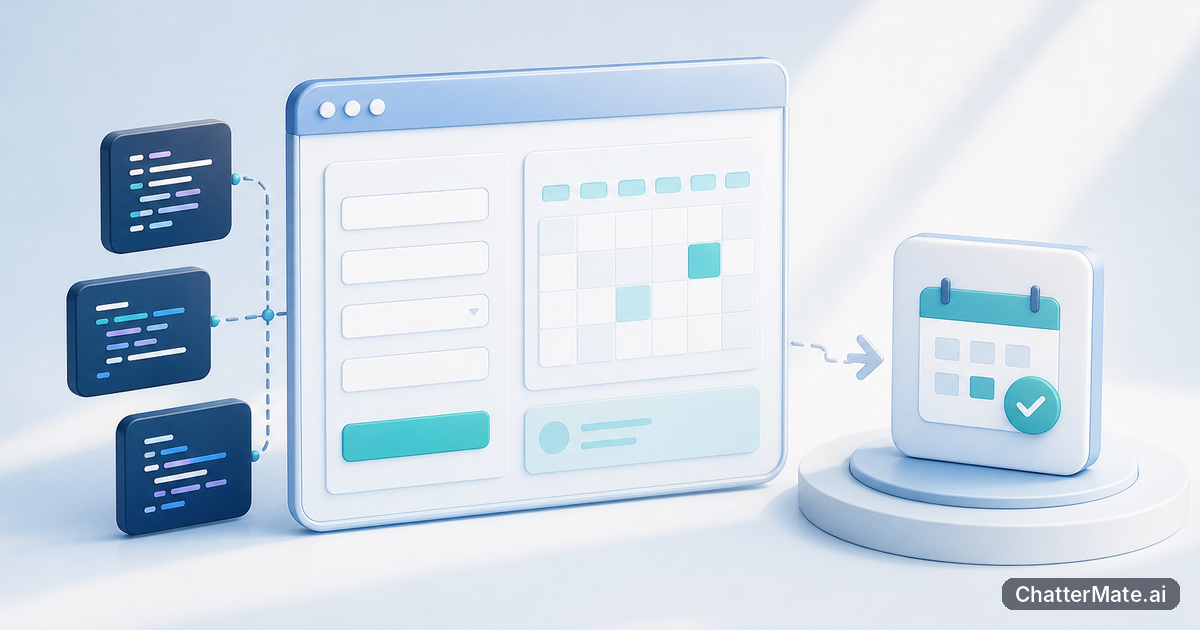
You can get a code snippet from an AI in seconds and still spend an afternoon wiring up a project before you can see it run. The gap between generated code and a working app is where setup, editing, and testing slow you down. A forge cloud ide brings those steps into a browser workspace, so you can shape an idea, inspect it, and move toward deployment without starting from a blank local environment.
What an AI-Powered Cloud IDE Does
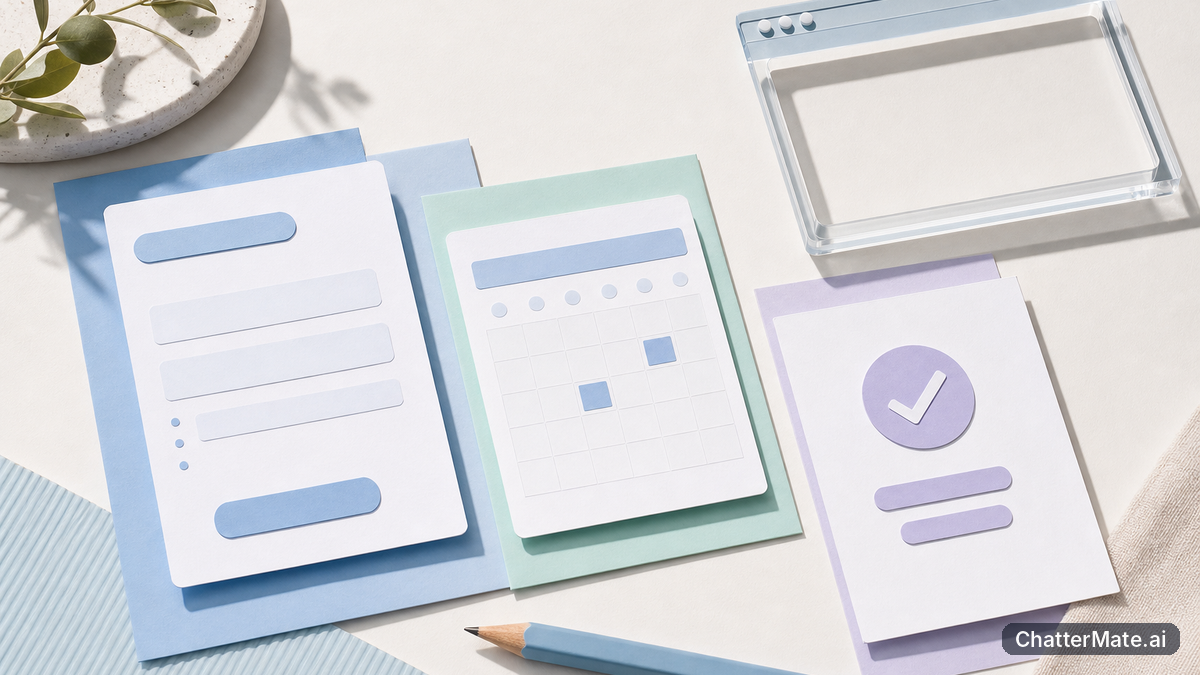
An AI-powered cloud IDE combines a code workspace with AI assistance and a way to preview what you are building. Instead of copying a response into another tool, you can use an agent to help scaffold an app, then review and edit the project in the same browser-based workspace. You stay in control: the AI can accelerate the first pass, but you still decide what belongs in the code and whether the result meets your needs.
For example, imagine you want a small appointment-booking page. Start with a prompt describing the key screens and actions. Once there is a project to work with, refine the form, adjust the page layout, and check how the result looks in preview. That loop—describe, inspect, edit—is more useful than a code snippet alone because it gives you something concrete to evaluate. For another look at browser-based app building, see this guide to building HTML apps.
Build and Edit in an Isolated Workspace

A focused project workspace helps keep experiments manageable. Rather than mixing a prototype with unrelated files, treat each app idea as its own project: give it a clear purpose, ask for a small first version, and make changes in deliberate passes. That makes it easier to understand what the AI generated and to spot whether an edit has the intended effect. In ChatterMate Forge, you can scaffold and edit web or mobile apps in the browser, work with AI agents, and preview the result as you go.
Try a concrete brief such as, “Create a simple inventory dashboard with a product list, a search field, and a low-stock indicator.” First check that the main screen is present; then ask for one focused change, such as making the low-stock state easier to notice. Keeping requests specific gives you a clearer review task after each change. For a related end-to-end example, explore the ChatterMate Forge workflow for solo client builds. For custom integrations, consult the ChatterMate Dev API documentation.
From Prompt to Preview to Deployment
A practical prompt-to-production workflow is a sequence of reviewable steps, not a leap from idea to finished app. Begin with the smallest useful version: name the user, the main task, and the essential screen. Ask the AI agent to scaffold that starting point, inspect the files, and preview the app. Then test the main interaction yourself. If a button or form does not behave as expected, describe the observed problem and request a focused correction rather than asking for a complete rewrite.
Once the prototype is coherent, use the workspace’s deployment capability to take the next step. Before deploying, review the app’s visible states and confirm that the central flow works from beginning to end. For the appointment page, that means checking that a visitor can reach the form and understand what to do next. ChatterMate Forge brings scaffolding, editing, preview, and deployment into a browser-based IDE, so you can keep moving through those stages without treating code generation as the finish line. Read more about the Forge cloud IDE workflow from idea to finished work.
Make the Next Build Small and Concrete
The fastest way to learn an AI coding workspace is to give it a task you can judge. Pick an app with one primary action—a booking form, a lightweight tracker, or a simple product catalogue—and write down what a user should be able to do. Ask for that first version, review the generated project in the browser, and use preview to compare the result with your original request. This keeps the AI’s work grounded in a testable outcome instead of an open-ended instruction to “build an app.”
As you refine the project, separate changes into small requests: add a screen, adjust a layout, or clarify an interaction. That gives you a chance to inspect each result before moving on to deployment. If you already have a useful chat-based build, bring that work into a Forge session and continue shaping it in the IDE. Describe your next app idea in ChatterMate Forge and watch the workspace come together; start with one clear use case, then build from there.
Frequently asked questions
Explore ChatterMate
Enjoyed this read?
Like, Share or comment below.