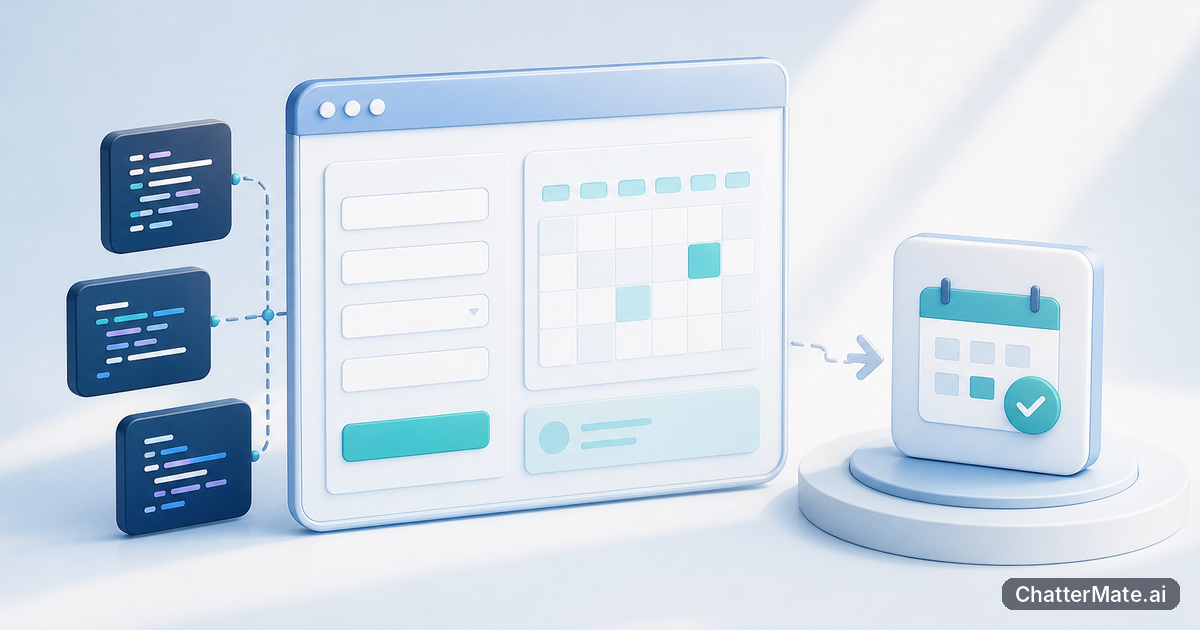
An AI-generated app idea is only useful once you can change the code, see the result, and ship it. In ChatterMate, start in Build Mode when you want a fast, chat-led scaffold; promote that project into Forge when you need a browser IDE for hands-on editing, AI-agent help, preview, and deployment.
Choose Build Mode in Forge Cloud IDE for a fast first draft
Start in Build Mode when your idea is still taking shape and you want to describe the interface before settling into code. It is designed for rapid UI scaffolding through chat, with a file tree and preview so you can inspect what has been created. For example, ask for a simple event signup page with a title, event details, and a registration form. Review the generated project, then use follow-up prompts to adjust the layout or clarify what the page should include.
Move to Forge earlier if you already know you want to work directly in a browser-based IDE, edit the project files, or use AI agents while building. You do not have to treat the modes as competing choices: Build Mode helps you get a starting point, while Forge gives you a place to continue the work. If you want another example of the journey from an idea to a project, see how notes can become a Forge build.
Promote your chat build into Forge
Once the first version is useful enough to keep working on, use Build Mode’s Take-to-Forge promotion to move the chat build into a Forge session. This is the handoff point: instead of leaving the scaffold as a chat-based draft, continue with its project in the coding workspace. For the event signup example, you might first make sure the page has the content and rough structure you need, then take it to Forge when you are ready to refine the files and check the experience more closely.
Think of the promotion as a change in working style, not a signal that the app is finished. You can still have open questions about a form or layout when you move over. The advantage is that you now have a browser workspace for continued editing and AI-agent assistance. ChatterMate’s Forge prompt-to-production workflow offers more context on carrying a project through later stages.
Edit the project with code and AI agents
In Forge, work directly with the project files and use AI agents to help with the next change. Be specific about the result you want: for the signup page, you could ask an agent to make the form’s required fields clearer, then inspect the relevant code and decide whether the proposed change fits. You remain responsible for reviewing the edits; agent assistance is a way to move through development tasks, not a reason to skip checking the result.
Keep each iteration small enough to evaluate. Change one part of the page, open the preview, and see whether the result matches your intent before moving on to another adjustment. This makes it easier to catch an unwanted layout change or a form detail that needs another pass. Because Forge is browser-based, you can scaffold, edit, and continue the project in the same workspace rather than treating the initial chat as a throwaway prototype.
Tip: Describe a concrete outcome for each agent request, then review the edited files and preview the change before asking for the next one.
Preview, deploy, and take your next step
Use Forge’s preview to check the app as you refine it. For the event signup page, inspect whether the event details and registration form are easy to follow, and look for anything that differs from the intended design. If something is off, return to the code or ask an AI agent for a targeted change, then preview again. This repeatable edit-and-check loop helps you catch issues before deployment instead of relying on the original scaffold to be ready as-is.
When the project is ready to go live, use Forge’s deployment workflow to deploy it. The right moment to leave Build Mode is when you want ongoing code-level work; the right moment to deploy is when you have reviewed the preview and are satisfied with the current result. To try the workflow, describe a small app in Build Mode, review its files and preview, then choose Take-to-Forge and make one focused improvement before deploying.
Related reading
Frequently asked questions
Explore ChatterMate.Ai
Enjoyed this read?
Like, Share or comment below.