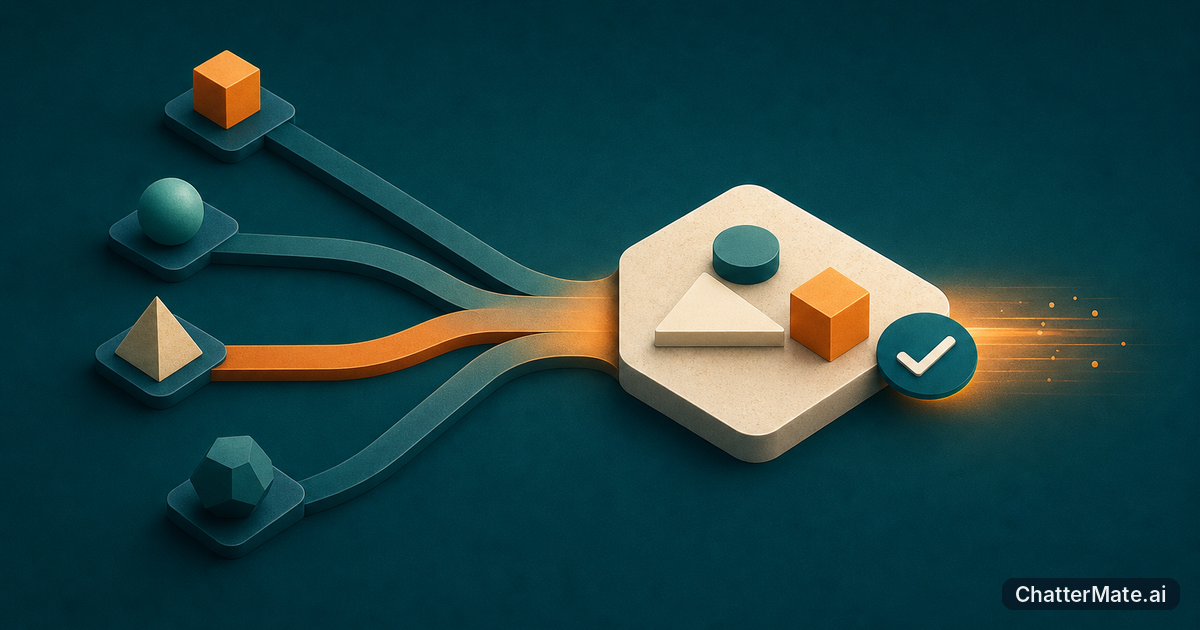
If your team already knows how to compare AI models, the frustrating part may be deciding which one to try next. Auto sounds like a way to skip that choice, but the useful question is whether it fits your actual work—and what you can verify about its results. Here’s a practical way to test it without assuming how model selection works.
When choosing a model slows down your multi-model AI chat
Manual selection is valuable when you have a reason to favor a particular model, but it adds a decision before every prompt. For a quick task—say, turning a short project update into three clear bullets—you may prefer to try Auto rather than pause to choose a model. That convenience is worth testing, not taking on trust.
One important limit: ChatterMate’s confirmed multi-model chat details describe side-by-side responses from OpenAI, Claude, Gemini, and Grok. They don’t specify Auto’s routing policy, which models it can choose, or how it makes that choice. So treat Auto as a mode to evaluate, not a guarantee of the best, fastest, or cheapest answer. If you’re setting up a broader comparison habit, this practical guide to ChatterMate can provide context.
How to activate Auto and try it in a chat
Start a chat with a task you can judge easily, then select Auto if it’s offered among the available model choices. The exact control placement and Auto’s selection behavior aren’t established by the verified feature details, so don’t rely on a particular menu path or assume a specific model will handle your prompt. Keep the first test small and low-risk.
For example, paste a short, non-sensitive project update and ask: “Rewrite this as three neutral bullets, keeping all dates and commitments unchanged.” Check whether the response follows the format, preserves the facts, and needs editing. Note the prompt, result, and any visible usage information so you can repeat the test. ChatterMate’s multi-model chat supports side-by-side model turns; use that as a separate comparison when you want to inspect responses from named models.
Compare Auto with a manual model pick on one real task
Use the same prompt and source text in two trials: one with Auto, if available, and one with a model you select manually. For the project-update example, score both outputs against the same checks: all dates retained, no new commitments, exactly three bullets, and a tone your team can use. Don’t change the prompt between runs; otherwise, you won’t know whether the difference came from the mode or your instructions.
Compare the results side by side if you have them available, and record which answer needed less editing. Also note response time and any token or credit information shown to you. That gives your team evidence about quality and observed usage for this task, without assuming Auto is more economical or that its choice will be consistent. For more on building a repeatable evaluation, revisit this ChatterMate workflow guide and adapt its practical approach to your comparison.
Check Auto’s trade-offs before making it your default
Auto may suit routine prompts when you care more about getting started than naming a model first. A manual pick is easier to reason about when a task has a known preference, when you need a stable baseline, or when your team is diagnosing why outputs differ. And if you need a direct model comparison, ChatterMate’s documented side-by-side turns let you compare responses from OpenAI, Claude, Gemini, and Grok rather than treating one Auto result as a comparison.
Don’t infer cost savings from fewer selection decisions: the verified details don’t define Auto’s routing, token use, credit use, or pricing behavior. Test representative prompts, repeat important trials, and keep a manual option for work where consistency matters. Start with a reversible task such as summarizing a short update; if Auto’s output meets your quality bar and its observed usage suits your team, keep testing it on similar tasks before making it a habit.
Frequently asked questions
Explore ChatterMate
Enjoyed this read?
Like, Share or comment below.