With several AI models and a Forge cloud IDE already in your toolkit, the hard part is choosing which answer is worth building and carrying it into editable code. Meet ChatterMate: compare responses side by side, scaffold a UI in Build Mode, then promote a promising start into Forge for browser-based editing and deployment.
Compare answers with the prototype in mind

ChatterMate lets you view responses from OpenAI, Claude, Gemini, and Grok side by side. For a builder, compare more than fluency: does a model identify the core screen, name the key interaction, and keep the first version small enough to test? Give each model the same request—for example, “Scaffold a settings page for a small team app with profile, notification, and save states”—then look for differences in structure, useful edge cases, and assumptions. A response that proposes a clear form and useful empty or error states may be a better starting point than one that adds extra features. Keep the winning requirements as a short build brief, rather than treating any model’s response as finished code. You’re choosing a direction for a prototype, not declaring one model universally best.
When Build Mode is useful
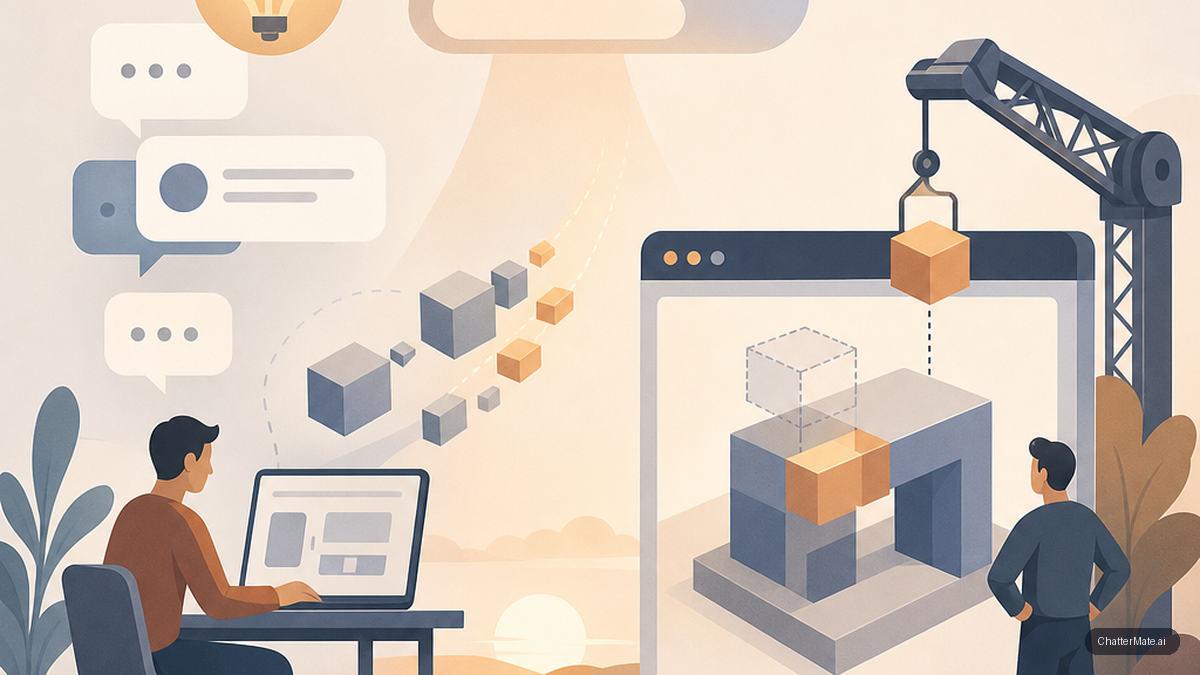
Build Mode is useful when a model’s response gives you a direction but you need a tangible UI to inspect, not a polished production application. Ask for a narrow slice—a sign-in screen, settings panel, or small dashboard with a filter—and use the file tree and preview to inspect how the scaffold is organized and looks. The preview can help you notice a missing field or awkward hierarchy before you move into a larger coding session; the file tree gives you a project structure to work with rather than a chat-only mockup. Download the result as a zip when you want a copy, or use Take-to-Forge to promote it into Forge. That makes Build Mode a practical place for bounded experiments: test an interface idea, compare variations, and carry forward the one that best answers your brief. Review the scaffold and decide what needs editing next.
Move from a chat build into Forge
Think of the flow as a handoff: use the chat to shape and scaffold a small interface, then promote the promising build into a Forge session when you’re ready to work on it further. For example, you might use Build Mode to sketch a project dashboard, check its preview, and adjust the request until the navigation and key panel feel right. Take-to-Forge then gives you a route into Forge, a browser cloud IDE where you can scaffold and edit web or mobile apps, preview them, and deploy with AI agent assistance. This is where a quick UI experiment can become a more deliberate coding session: inspect the project, make edits, and check the result in the browser. The handoff connects a useful chat outcome to an environment for continued work, without asking you to treat the first scaffold as finished.
Try the workflow with one small feature
To assess fit, choose a feature your team can describe in a few sentences. Ask the models for the same UI direction, compare their answers against your requirements, and select one idea to scaffold in Build Mode. Inspect the file tree and preview, then decide whether the result is worth promoting to Forge. In Forge, test whether the browser-based editing, preview, and deployment workflow suits the way your team builds. Keep notes on what saved time and what still needed hands-on changes; that will tell you more than a broad demo. For another example of framing a task, read this practical guide to using ChatterMate. If your team is evaluating a different kind of workflow, this task-specific ChatterMate example offers a point of comparison. Keep your own test centered on the prototype handoff.
Frequently asked questions
Explore ChatterMate
Enjoyed this read?
Like, Share or comment below.